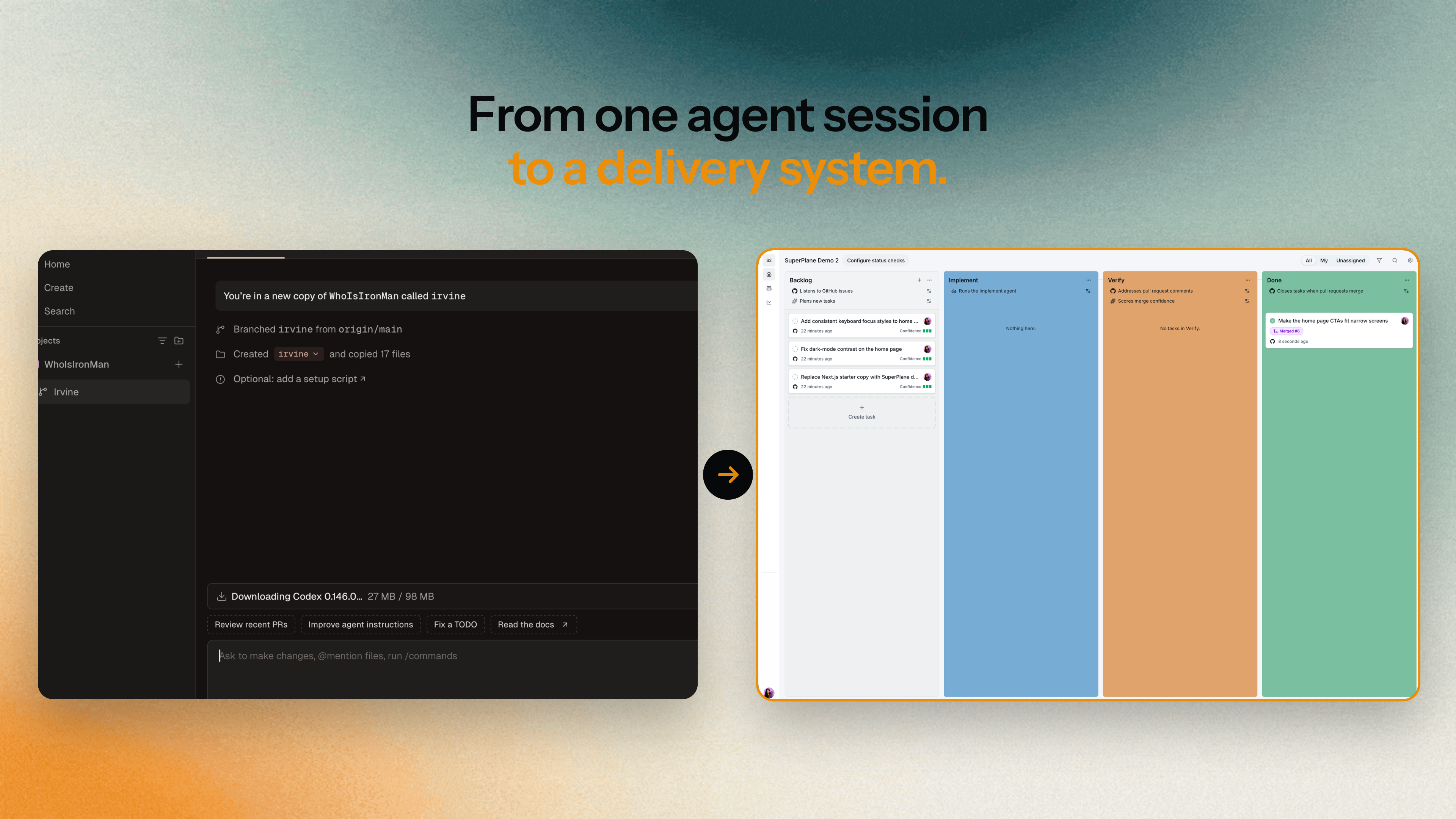
Conductor is joining Meta and is winding down. This guide will help you move your repositories, unfinished work and agent workflow to SuperPlane, where tasks move through intake, implementation, verification and human review inside the open source software factory.
The local Conductor app continues to receive new models and critical fixes until early 2027, when it begins winding down.
Conductor Cloud becomes read-only on November 13, 2026 and shuts down on November 20, 2026, when Conductor begins deleting cloud data. Commit and push unfinished changes before the read-only date and export your data before shutdown.
Start with how Conductor maps to SuperPlane, then follow the steps below to set up your SuperPlane Factory. For the settings checklist, see the Conductor migration docs.
How Conductor maps to SuperPlane?
In Conductor, you open a workspace to work with a checkout and its agent sessions. In SuperPlane, the workspace holds your repository connection and configuration. Each assignment becomes a task that moves through Backlog, Implement, Verify and Done.
The migration brings the code, setup and task context into that workflow. Automations determine what happens around an Agent Run, including required checks and pull request handling. Here is where to place each part of your existing setup.
| From your Conductor setup | How to handle it in SuperPlane |
|---|---|
| Repository | Connect the same GitHub repository during workspace setup. Check access and the default branch before running a task. |
| Workspace | Create a Factory task for the assignment. Use the board to follow implementation and verification. |
| Working branch | Push the changes to GitHub and record the branch and commit in the handoff. Confirm the starting branch separately for the next run. |
| Prompts and conversation history | Extract decisions, remaining work and acceptance checks into the task description. Keep the full export as a reference. |
| Installation and repository scripts | Adapt the commands in Agent setup steps so they prepare the runner for your project. |
| Conductor-provided variables | Review paths, ports and references to CONDUCTOR_*. Replace values that depend on the old environment with the appropriate runner configuration. |
| Environment files and credentials | Restore required values and reconnect integrations. Keep secret values out of Git and task descriptions. |
| Coding-agent account or provider key | Select the workspace’s model source: SuperPlane-managed models, a supported API key or ChatGPT for Codex. |
| GitHub or Linear requests | Configure Intakes to bring the requests you want to work on into Backlog. |
| Pull request creation | The Implement stage produces or updates the task’s pull request as configured. Existing PRs remain in GitHub for review. |
| Tests and review feedback | Use Verify to evaluate required checks and PR feedback. Failed checks can return to the agent for correction. |
| Hosted execution | Choose the SuperPlane hosted app or a self-hosted deployment, then configure the connections and runner your tasks need. |
| Scripts or editor tools using the API | Connect them through the API, CLI or MCP server. Review the operations and credentials each tool requires. |
Before starting a migrated task, check three things together: the repository and base branch, the model source and the task description. Then choose a small issue with a result you can verify. That first run will help you find missing setup or access before handing over a larger change.
Prepare the SuperPlane workspace before starting implementation
The setup has four parts: repository access, model access, the runner environment and the connections used by your tools. Work through all four before handing a task to an agent.
1. Connect the repository and review intake
Sign in to SuperPlane, connect GitHub and authorize the SuperPlane GitHub App for the repository you used in Conductor. You need write access to that repository and permission to authorize the connection.
During onboarding, choose GitHub issues as the work source. Review Import existing issues and Automatic intake so you know which requests will enter Backlog. For an existing workspace, confirm Settings → Repository → Default branch as well.
The Quickstart covers onboarding. Intakes explains how requests become tasks on the board.

2. Choose how tasks get model access
Open Settings → Models → Change model source. You can use SuperPlane-managed models, connect a Claude, OpenAI or OpenRouter API key, or use a ChatGPT subscription for Codex. Select the models available to the workspace and choose Save models.
For ChatGPT, first connect your account under Settings → Account → Codex. Then choose a connected member as the workspace’s Default task owner. Tasks use their owner’s subscription, so confirm ownership as part of setup.
Model access and sandbox usage are separate charges. Using your own API key or ChatGPT subscription still incurs sandbox charges; review pricing for the available plans and usage details.
3. Make setup work outside the old workspace
On the workspace’s Agent page, open Setup steps → Edit. Enter one command per line and select Save setup steps.
Review the scripts you collected before reusing them. Paths into your Mac or an old checkout need changing. References to CONDUCTOR_* variables need runner-appropriate values. Check that required runtimes and packages are available.
Where possible, call scripts committed to the repository. That gives your team one place to maintain setup when dependencies change. Keep build, lint and test commands in the project’s agent instructions too, so the agent knows how to validate its work after setup finishes.
If the project used MCP tools in Conductor, reconnect the required servers using Connect on the Agent page. Review each server’s access and credentials rather than assuming that a reference in the old chat restores the connection.
4. Authorize services and supply credentials
Use Settings → Integrations to reconnect the services required by the repository and its checks. For integration credentials, open Settings → Secrets → Create secret, name the secret and add the required keys and values. Select the saved secret in the connection that needs it.
Also check the application’s environment requirements. A saved integration secret does not establish that the test runner has everything the application needs. Compare the environment against the setup notes you collected from Conductor.
Secret values are hidden after saving. Keep the originals in your team’s secret store so they can be restored or rotated later.
Follow one issue all the way to a reviewed change
Return to the small issue you chose. Give it a defined outcome, a clear scope and the checks you expect to pass. Add relevant decisions from the old session, then confirm that intake has brought it into Backlog with the right repository and context.
Read the task’s confidence assessment and its reason. If the issue leaves an important decision open, clarify it before selecting Start.
During Implement, inspect setup output and the agent’s progress. A missing dependency, credential or model connection should be corrected before retrying. Confirm that the proposed change stays within the issue’s scope.
During Verify, open the linked pull request. Review the required checks, their output and any feedback. Failed checks can return to the agent for correction; inspect the resulting diff against the original request.

Before accepting this first task, check that the agent ran the relevant commands and that a reviewer can understand the result from the task record. Done means the Factory’s configured completion condition has been satisfied. Review and merge still follow your team’s process.
Our Build your first Factory guide walks through a complete example. Use it if you need more detail on the Factory pipeline or the verification handoff.
Bring over unfinished work with its branch context intact
Once the first task works, return to the changes already in progress. Existing branches and pull requests remain in GitHub after you push them. They can continue through review while other issues enter SuperPlane.
For a partially completed task, describe the changes already made and the remaining work. Include its branch, commit and PR URL, then confirm the repository and base branch before starting a run. A link does not select the branch. The migration does not automatically resume the checkout and session state from Conductor.
Resolve any uncertainty about the starting point before asking an agent to continue. Otherwise, a new attempt can repeat changes that already exist on another branch.
Bring reviewers into the workspace as well. Open Settings → Members → Invite member, enter an email address, choose a role and send the invitation. Copy link provides the generated invitation to share with that person.

Have a teammate open the task history and linked pull request. If tasks use ChatGPT subscriptions for Codex, each member who will own tasks needs to connect their own account. Verify access with the people who will use it before transferring more work.
The full checklist, with links to each setting, is in Migrate from Conductor Cloud. If you get stuck partway through, email our team at [email protected].